
Core Concepts
This page walks through the building blocks of a Storylet Studio storyworld. Get these terms straight and authoring gets a lot easier.
The big picture
A storyworld is your interactive story: not a fixed script, but a set of scenes the system picks between as play unfolds. Here's the whole idea in one pass; the rest of the page then takes each piece in turn.
The basic unit is the storylet - a single scene, encounter, or moment. Picture each one as a card. Related cards gather into a deck, and like any deck it gets shuffled and dealt from.
Cards are dealt to sites. A site is a place where scenes play out - a location in your world. Each site holds a hand of storylets dealt from the decks: the scenes available there right now. You decide how many cards a site can hold.
When a storylet is played, its scene happens. Every storylet has one or more outcomes - the different ways the scene can end. Storylet Studio doesn't decide which outcome occurs: your game or your live installation does, whether by a player's choice, by chance, or by your own logic. The chosen outcome then changes the world. The hands top up with fresh cards to replace what was played, and the story carries on.
So what decides which cards may be dealt? Conditions. A storylet can carry a condition, and so can the site, deck, or act it belongs to. A condition is a question about the state of the world: "is it winter?", "has the player met the blacksmith?", "is reputation above five?". Only storylets whose conditions are satisfied can be dealt.
The state of the world lives in properties: named values you author, such as season, reputation, or met_blacksmith. Conditions ask questions about properties; outcomes change them. That loop - deal the eligible cards into each site's hand, play one, apply its outcome to the properties, redeal - is the heartbeat of every storyworld.
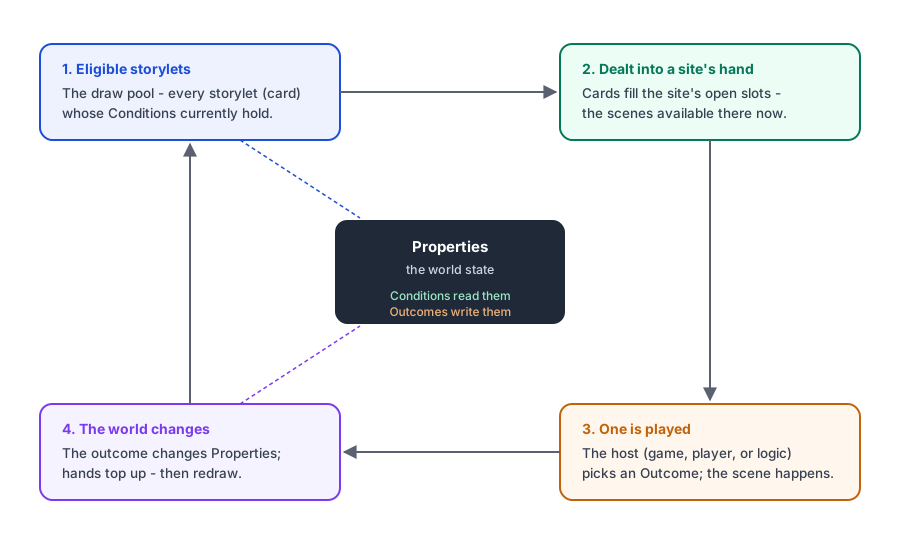
Storylets
A storylet is a single narrative beat - a scene, an encounter, a moment. It's the card from the picture above, and the smallest thing you'll author.
Every storylet has:
- Condition - a rule that must be true for the storylet to be eligible, built visually in the block-based condition editor (not written as code). If absent, the storylet is always eligible.
- Priority - controls ordering when multiple storylets are eligible. Higher priority = appears first.
- Redraw - what happens after the storylet is played:
always(keep returning),never(one-shot), or a cooldown number (re-eligible after N more turns). - Content - the title and prose description shown to the player.
- Outcomes - the different ways the scene can end. A storylet can have several outcomes, one of which fires when it's played. Each has its own title and description, plus the world property changes applied when it fires. How outcomes surface to the player is up to the host: in a choice-based game they might appear as selectable choices, but they needn't - an outcome can just as easily be picked by chance, by game logic, or as the single way a scene resolves. An outcome can also carry an optional availability condition: when set, the outcome is only offered while that condition holds, so the same scene can present different choices for different world states (for example "Give him the mystic stone" only once the player has it). Unavailable outcomes are shown disabled rather than hidden. Keep at least one always-available outcome so a player who meets none of the conditions still has a valid choice.
- Tags - labels that tell one kind of storylet from another. They pull double duty: in the authoring tool they drive conditions (
count_played_tag,turns_since_tag) and filtering; and at runtime they ride along on the storylet so your host game can read them and react (e.g. treat everything taggedcombatone way anddialogueanother). (Storylet tags do NOT participate insite_has_tag()- that operator reads the site's own tags, not the storylets running there.)
Properties
Properties are named values that track the state of your world. Conditions test them; outcomes can change them.
Property types:
| Type | Example | Notes |
|---|---|---|
boolean |
has_visited_mill = true |
|
number |
reputation = 7, morale = 0.85 |
Whole numbers and decimals share one type - there's no separate integer / float distinction. The value's appearance tells them apart in the editor. |
string |
player_name = "Asha" |
|
enum |
season = autumn (one of: spring, summer, autumn, winter) |
Exactly one value active at a time |
flags |
quests = [blacksmith_met, tree_task] (any of: blacksmith_met, tree_task, herbs_found) |
Any number of named flags active simultaneously |
Property names must use only letters, numbers, and underscores (e.g. visit_count, season_state). No spaces.
Property scopes
Every property has a scope: how widely it's visible, and where you define it. There are six in every storyworld, plus two more that only exist in multiplayer storyworlds. You refer to a property by its scope prefix and name:
| Scope | Where you define it | How you refer to it |
|---|---|---|
| World | the Properties page | @propName (or @world.propName) |
| Deck | a deck's Properties tab | @deck.propName |
| Act | an act's Properties tab | @act.propName |
| Zone | a zone's Properties tab on the Storymap | @zone.propName |
| Site | a site's Properties tab on the Storymap | @site.propName |
| Story | built in - you don't define this one | @story.act |
| Player (multiplayer only) | the Player Properties tab on the Properties page | @player.propName |
| System (multiplayer only) | the System Properties tab on the Properties page | @system.propName |
A World property is the simplest case: it's global, so any storylet can read it and any outcome can change it. The other scopes are narrower - a deck/act/zone/site property is only in play while you're working within that deck, act, zone, or site. Outcomes can change a property at any scope. The sections below cover what each scope is for.
The last two, Player and System, only show up when a storyworld is set to multiplayer. They cover per-player memory and installation-wide state that persist between sessions. See Multiplayer storyworlds for the full picture.
World properties are global - any storylet can test them and any outcome can change them. You refer to a world property by its name (for example season), and names are unique across the storyworld.
Deck properties are local to a single deck. You declare them in the deck's Properties tab, and they're visible to storylets in that deck. They're handy for per-deck state that tracks progress through a narrative arc independently of the rest of the world (e.g. whether the player has seen the opening scene for a particular quest). Reference them in conditions as @deck.propName.
Zone properties are local to a zone. You declare them in the Properties tab of the zone's side panel on the Storymap Plot page, and they're visible in draws scoped to that zone or its sites. Use them for state that's inherently regional (e.g. the current weather in a specific area of the map). Reference them in conditions as @zone.propName.
Site properties are local to a single site. Declared in the Properties tab of the site's side panel on the Storymap Plot page, and visible only in draws at that site. Use them for state that belongs to one specific location (e.g. whether the mill has been searched). Reference them in conditions as @site.propName.
Scoped properties (deck/zone/site) are initialised from their declared default values at the start of each session. Outcomes can change them just like world properties - you pick them from the same scope-grouped list in the editor.
Geography: zones and sites
A storyzone is a named logical region of the world (e.g., "The Forest", "The Village"). Zones can declare their own local properties.
A storysite is a specific location within the world (e.g., "Old Mill", "The Tavern"). Sites have:
- A slot count - how many storylets can be active at this site simultaneously.
- Their own local properties.
- A list of storylets that can appear here.
- Free-form tags (edited from the Tags tab on the site's right-hand pop-out in the Plot editor). Test them in expressions with
site_has_tag("name")to gate world- or zone-scoped storylets selectively per site (e.g. tag certain sitesindoors, then writenot site_has_tag("indoors")on a weather storylet so it skips covered locations).
The key idea: a site holds a hand of cards. Each storylet is a card; the slot count is how many cards the site can hold at once; and the cards are dealt from the pool of storylets currently eligible there. This card-dealing picture is the heart of how storylets flow through the world - see The card-dealing analogy below for the full version.
A site can belong to one or more zones - zones are advisory groupings, not ownership. Place a site inside two overlapping zones and it belongs to both. A site not inside any zone is just unassigned.
Storymap
The storymap is a notional geography of your storyworld: a spatial layout of where things happen. Rather than organise storylets only by deck, the map lets you organise them by place - which beats can be drawn where.
What that geography represents is up to your project:
- For a computer game, it's like a map of the play space - the regions and locations a player moves through.
- For a live installation or immersive experience, it can be a map of the physical area - the rooms, zones, and stations a visitor moves between.
- It can also be entirely notional - "places" that are really phases, themes, or contexts, with no literal geography at all.
The map is built from the zones (regions) and sites (specific locations) introduced above. Because each site holds its own hand of storylets, the map is also how you decide where a given beat is eligible to appear.
The storymap is split into three pages, reached from the Storymap group in the left sidebar: Design (lay out the map), Plot (assign storylets and set their gating), and Simulate (play through it). All three remember your pan/zoom for the map, so moving between them - and coming back later - keeps your place. The first time you open a map (or a freshly duplicated one) the canvas frames the whole thing automatically; the Show All toolbar button re-frames everything any time you want it.
Design
The design canvas is where you lay out zones and sites visually. It handles map structure only - naming, geometry, colours, slots, zone membership, and game-data values. Anything that gates which storylets are eligible (zone/site conditions, scoped properties, site tags) lives on the Plot page below, since that's story content rather than map structure.
Zones are drawn as colour-coded polygons. To create one, click Draw Zone, click to place each point of the polygon, then click Close & create (or press Enter) when done. The zone is created with an auto-generated name which is immediately selected for editing. Press Escape at any time to cancel.
Sites are placed with the Place Site tool - click anywhere on the canvas to drop a pin. The site is named automatically and its name field is highlighted for immediate editing. A site is auto-assigned to every zone whose polygon contains it, and dragging it to a new position updates that membership automatically.
Pins are informational markers - landmarks, NPC locations, plot waypoints. Place one with the Place Pin tool (the diamond icon). Pins show up as a small amber diamond with the name underneath. Each has a name, a Game ID (auto-generated from the name; the host game references the pin via this ID), a Description (short text shown when you hover the pin on the Design or Plot map), and free-form Notes. Like sites, pins join every zone whose polygon contains them and follow zone moves when you confirm at the prompt. Pins do not host storylets - they're purely map context and queryable references for the host game (getAllPins, getPinsInZone).
Background images can be added via Add background. Each image has independent position, scale, opacity, lock, and visibility controls.
Polygon editing (select a zone then select it in the detail panel):
- Drag a point (●) to move it.
- Click a midpoint (○) on an edge to insert a new point.
- Click a point to select it, then press Delete to remove it (minimum 3 points).
- Drag the centre handle (✥) to move the whole zone; if the zone contains sites or pins you are asked whether to move that content along with it.
Keyboard shortcuts:
Enter- confirm zone creation (when ≥ 3 points drawn)Esc- cancel zone drawingDelete/Backspace- delete the selected point, zone, or site (when no input field is focused)
Plot
A read-only canvas for inspecting and managing storylet assignments without leaving the map. Click any zone or site pin to open its side panel.
- Filters - narrow the storylet list by deck or tag.
- Condition passing filter - shows only storylets whose condition evaluates true against current property defaults.
- Click a zone or site pin to see which storylets are assigned there, add new assignments, or remove existing ones.
- Site badges show the count of assigned storylets (filtered by any active filter).
The Plot side panel for a selected zone or site has tabs for Storylets, Condition, Properties, and - for sites - Tags:
- Condition is the gating rule for the zone or site, built in the same block-based condition editor you use for storylets. If it evaluates false, no storylets are drawn for any draw scoped to that zone (or sites within it) / that site. It can test world properties as well as the zone's or site's own scoped properties.
- Properties edits the zone- or site-scoped state vars. Reference them in expressions as
@zone.propNameor@site.propName. - Tags (sites only) is a free-form list of labels tested by
site_has_tag("name")in storylet conditions. Tag a siteindoorsonce, then any number of weather storylets can writenot site_has_tag("indoors")to skip it.
Conditions, scoped properties, and site tags all count as story content: they're wiped by Clear All Story Content and only copied by Duplicate Storyworld when Include all story content is ticked. The map structure (zones, sites, polygons, pins, backgrounds) is never wiped and is always copied.
Simulate
Runs the draw/play loop live on the map. The simulation builds automatically when the page loads.
- Click a site pin to navigate to it and see its current hand (the storylets currently in slot). Navigating costs 1 turn.
- Click a storylet card to select it, then choose an outcome. The outcome is applied, slots re-prime across all sites, and the turn counter advances.
- Storylets that aren't in the current hand are listed in the right sidebar as Not in hand, with a reason (cooldown remaining, condition not met, or lower priority / slot full).
Simulation controls (pinned at the bottom of the right sidebar):
- Turn counter - shows the current game turn.
- Reset sim (
|◀) - restarts the simulation from scratch. - Advance turn (
▶) - advances the turn by one turn and reprimes all slots, without playing a storylet. - Save state - enter a name and save the current world state as a named snapshot; the date and time are prepended automatically.
- Restore state - load a previously saved snapshot.
- Export / Import - write the current state out as a portable
.storyworldstatefile, or read one back. The same file format loads in the Unreal and Unity plugins' State tab. - Log - expand an inline log of every draw, eviction, and play event, with Copy and Download options.
Draw and play
The draw is when Storylet Studio evaluates all eligible storylets and returns an ordered list (the hand). The host - the game, or the Storymap Simulate page - presents that hand to the player.
How draw order is decided
Eligible storylets are ranked in this order:
- Priority. Higher priority always wins. A storylet at priority 10 draws ahead of every priority 3 storylet, regardless of anything else.
- Geographic specificity. At the same priority, a site-specific storylet draws ahead of a zone-specific one, which draws ahead of an unconstrained one.
- Condition specificity (optional, default on). At the same priority and the same geographic tier, the more specific storylet wins - the one whose condition is held true by more separate things right now. A storylet that checks both the season and the player's reputation outranks one that only checks the season, so a tailored scene beats a generic one. What counts is what is actually matching: a flag check that requires three flags counts for three, and an "any of these" (OR) group is scored by the branch that currently applies - so a card that is highly specific in one situation can sit at a generic rank in another. You can switch this off in Storyworld Settings; when off, same-priority ties fall through to the shuffle.
- Shuffle. Anything still tied is shuffled. The shuffle is repeatable: the same starting state gives the same order, so you can reproduce a playthrough.
Playing a storylet applies one of its outcomes. After a storylet is played:
- The outcome's changes to properties are applied.
- The storylet's redraw timer is updated (so a one-shot or cooled-down storylet won't immediately reappear).
- Empty slots at active sites are refilled with fresh draws.
The card-dealing analogy
A handy mental model for how storylets flow through the world:
- Each storylet is a card.
- Each site holds a hand of cards (up to its slot count).
- The draw deck is the pool of storylets not currently in any hand - the ones that are eligible given the current world state (season, properties, cooldowns, etc.).
When a slot empties - because a card was played - that site draws a replacement from its eligible pool. The pool is re-evaluated fresh at that moment: conditions are checked, cooldowns are respected, and only storylets scoped to that site (or its zone, or the whole world) are in the running.
Two nuances worth knowing:
- Hands persist. A site keeps its hand between turns and only tops up empty slots - the remaining cards stay put until played.
- Each site draws from its own pool. There's no single shared deck rebuilt at the start of a turn. Each site's eligible pool is worked out independently when it draws. A zone-scoped storylet already sitting in one site's hand isn't available to another site in the same zone until it's been played and its cooldown has cleared.
Conditions and outcome changes
See also: Writing Conditions and Outcome Values - the full tour of the block-based editors.
You don't write conditions or outcome changes as code. You build them visually in a block editor, picking properties, operators, and values from menus. (There's an underlying text form too, but it's an optional fallback - see the end of this section.)
Conditions (on storylets, decks, zones, and sites) are built in the condition editor, which lays the condition out as a structural outline of clauses. A container header reads ALL of these (every clause must hold) or ANY of these (at least one), and each row beneath it is a single clause - a property test, a built-in check, or a nested group. You add a clause from a menu of ready-made templates, pick the property from a list grouped by scope, choose the operator, and fill in the value. There's no operator precedence to keep in your head: what you see is what the condition does. An empty condition just means "always eligible".
Outcome changes (on an outcome) are built in the pill editor: pick the target property, then its new value, with the input shape matching the property's type - true/false buttons for a boolean, a number field for a number, a list of choices for an enum, a toggle grid for flags. Each change reads as a short strip of colour-coded pills; click any pill to change it.
The clause templates and built-in checks you can drop into a condition include:
| Check | What it tests |
|---|---|
| Property comparison | a property against a value or another property (is, ≠, >, ≥, <, ≤) |
| Property is true | a quick boolean check |
| site_has_tag | whether the site this storylet is running on carries a given tag (tag the site on its Tags tab, then gate any world- or zone-scoped storylet on it) |
| count_played_tag | how many storylets with a given tag have been played |
| turns_since_tag | how long since a storylet with a given tag last played - a cooldown |
| random | a random whole number in a range; random(1, 6) is a die and a 30%-chance gate is one step away. Seeded, so runs reproduce |
| flags check | whether named flags on a flags property are set or unset (see below) |
Flags
A flags property holds a set of named flags that can be on at the same time. In the condition editor you check them with flag pills - one per flag, each toggled to require it set (+) or unset (−); list as many as you need and they all have to hold. The editor renders the check compactly as ⚑ quests ( +blacksmith_met , −herbs_found ) so it's easy to scan.
In an outcome change you get a toggle grid of the property's flags, clicking each to cycle no change → set (+) → clear (−). Outcomes can change flags at any scope (world, deck, act, zone, site).
The text form (fallback)
Both editors have a small </> escape hatch that swaps the blocks for a raw text version of the expression - @season == autumn and @reputation > 3, check_flags(@quests, +blacksmith_met), and the like. Properties appear there by a short @ name: @season for a world property, @deck.visited / @zone.weather / @site.searched for scoped ones (@world.season is the explicit long form of @season; names are case-insensitive). You'll see these same names on the pills and in the storylet table.
The text form is there for pasting an expression, or for the rare case the blocks don't yet model - anything you type round-trips straight back to blocks. It's a fallback, not the main way to author, and may be retired in future. Treat the block editors as the primary surface.
Location-based storylet assignment
Storylets can be constrained to specific zones or sites using the Location tab in the storylet editor. The tab shows a three-level tree:
- World - no constraint; the storylet is eligible in any draw. Active when nothing else is checked.
- Zone - the storylet is eligible in draws scoped to that zone (and all sites within it).
- Site - the storylet is eligible only in draws scoped to that specific site.
Sites with no zone are grouped under a No Zone header at the bottom of the tree.
Mutual exclusion: checking a zone automatically unchecks any of its sites you'd individually selected (a zone assignment already covers them).
Autosave: location checkbox changes save automatically - no need to click Save after ticking a zone or site.
You can also assign storylets straight from the storymap editor: the zone and site detail panels each have a search field to find and add storylets by name or gameId.
Decks
A deck is an authoring folder for organising storylets. Each deck has a colour - a vivid hex colour you pick when you create it. The colour shows up as a border and background tint on deck cards, storylet cards, and storylet list rows. It's authoring-only and has no runtime effect.
Decks can carry an optional condition. Set a deck condition and, when it evaluates false, every storylet in that deck drops out of the current draw. This is the recommended way to gate a whole quest branch: put those storylets in a dedicated deck and write a single condition on the deck itself.
Decks can also declare deck-scoped properties in the deck's Properties tab. These are local to the deck and can be referenced in conditions and priority expressions as @deck.propName. They're initialised from their declared defaults.
Every storyworld auto-creates one deck named "General", marked as the default deck. That's where new storylets land when you don't put them anywhere else, and it's the safe destination for storylets when another deck is deleted. You can rename the General deck or make any other deck the default from the deck's detail form. The last remaining deck can't be deleted - every storyworld needs at least one deck for storylets to live in.
Acts
An Act is a phase of the story. Each storylet belongs to exactly one Act. At runtime, only storylets in the current Act are eligible to draw, with one exception: storylets in the Anytime Act are always eligible whatever the phase.
Every storyworld has one Anytime Act, auto-created and undeletable. Anytime is the catch-all bucket for storylets that should stay drawable throughout the whole story - ambient flavour, recurring NPCs, the "spine" of the storyworld. The Anytime Act can't itself be set as the current Act; it's a backdrop that's always on.
The current Act is tracked by a system property @story.act. Outcomes change it like any other enum write, and the change ripples through every later draw - storylets in the new Act become eligible, storylets in the old Act stop appearing.
Acts also support Act-scoped properties declared on the Act itself. Reference them in conditions or priority expressions as @act.propName. They behave like deck-scoped properties: only injected when evaluating storylets that belong to that Act.
The Starting Act of a storyworld is the value @story.act initialises to on a fresh playthrough. On a brand-new storyworld with only the Anytime Act, the Starting Act is Anytime - the bootstrap state. The first time you add a non-Anytime Act, the Starting Act is promoted to it automatically. After that, you can change it by hand from the Storyworld settings whenever you reorder your story.
Storylet views: Cards, Table, Connections
Every surface that lists storylets, decks, or acts (the All Storylets page, the per-deck and per-act detail panes, the Decks page, the Acts page) lets you switch view modes via the icon toggle in the top-right:
- Cards - a card grid with the deck colour as the card's accent. Best for visual triage when card titles are the main thing you scan by.
- Table - a dense row-per-storylet view with sortable columns. Best for bulk inspection, editing tags, or filtering across hundreds of storylets.
- Connections - a graph view of the static links between storylets: which ones can enable, disable, or otherwise influence which others, derived from their conditions and outcomes alone. Best for tracing cause and effect ("what turns this on?", "what could turn it off?") without running a playthrough. Available inside a single deck and, as an act-flow map, at the Acts overview. See Connections for the full walkthrough.
Cards and Table are available on every list surface, and the choice is app-wide: pick one and every surface switches over (your preference is kept and reapplied). Connections appears only in the scopes where it applies (see Where Connections appears below), so the toggle shows that button only there.
Sort modes
Two sort modes apply to the Cards and Table views, picked from the toolbar next to the view toggle:
- Free - a manual order you set by dragging cards (Cards) or rows (Table) to rearrange them. Free order is saved per surface (each deck, each act).
- Alphabetical - sorted by storylet/deck/act name, with leading articles ("The", "A", "An") discounted so "The Mill" and "Mill" sort together.
Where Connections appears
Cards and Table work on every storylet, deck, and act surface. Connections is more selective - it earns its keep at a specific scope and is hidden elsewhere:
- Inside a single deck - the storylet dependency graph for that deck.
- At the Acts overview - an act-flow map (how outcomes advance
@story.actfrom one act to the next).
It is not offered on the All Storylets page, the Decks overview, or inside a single act. So the top-level Decks and Acts pages are for Cards / Table triage; the dependency graph lives one level down, where the set of storylets is small enough to read.
Drilling into a deck or act
From the Decks or Acts overview (in Cards or Table), click a deck or act to drill in. The page swaps to that single container's detail, with its own Cards and Table views (plus Connections inside a deck) for just its storylets. At the Acts overview you can also click an act on the act-flow map to drill into it.
Esc (with the editor closed) or the browser back button returns to the overview. Esc with the right-pane editor open closes the editor first, leaving the drill-down on screen.
Location conditions
Zones and sites can each carry an optional condition. A location condition gates the entire draw at that location:
- Zone condition - if it evaluates false, no storylets are drawn for any draw scoped to that zone, including draws at sites within it. Use this to mark a whole region as off-limits until some world-state is reached (e.g.
@dungeon_unlocked == true). - Site condition - if it evaluates false, no storylets are drawn at that site. Checked after the zone condition - if either fails, the draw is empty.
Location conditions are set in the Condition tab of the zone or site editor in the Storymap design view.
Evaluation order for a site draw:
- Zone condition(s) - if any zone containing the site fails, the draw is empty.
- Site condition - if the site's own condition fails, the draw is empty.
- Deck conditions - for each remaining storylet, its deck's condition (if any) is checked.
- Individual storylet conditions.
Properties page
The Properties page (reached from the Content group in the left sidebar) has an All Properties tab and a World Properties tab. Multiplayer storyworlds add two more - Player Properties and System Properties - which stay hidden in single-player (see Multiplayer storyworlds).
All Properties - a master view across every scope. It shows each property in the storyworld - world, deck, act, zone, and site, the read-only synthesised @story properties, and (in multiplayer) @player and @system - with its scope, type, and purpose. Scope badges colour-code each entry. Click a property name to jump straight to its editor; click the declaring entity (zone name, deck name, etc.) to jump to that entity's properties list.
World Properties - create, edit, and delete world-scoped properties. These are the storyworld's global variables.
Player Properties / System Properties (multiplayer only) - create and edit the durable per-player (@player) and installation-wide (@system) properties. See Multiplayer storyworlds for what each is for.
Deck, act, zone, and site properties are managed in each entity's own editor (deck editor and act editor Properties tabs; storymap zone/site detail panel Properties section), not on this page.
Management
The Management group in the left sidebar holds three sub-pages for looking after the storyworld:
- Storyworld - duplicate, clear, delete, and import/export operations on the storyworld as a whole (the rest of this section).
- Game Data - author-defined custom metadata fields. See the dedicated Game Data page.
- Settings - storyworld-level project settings.
Duplicate Storyworld
Creates an independent copy of the current storyworld in your workspace. The new name is pre-filled as {original name} Copy {date/time}, and you can edit it before confirming.
The map structure - zones, sites, pins, and background images - is always copied. Zone and site conditions are only copied when story content is included, since they may reference world properties that wouldn't otherwise exist in the copy.
Tick Include all story content to also copy all decks, storylets, and world properties. Property references in conditions and outcomes are remapped to the new property copies automatically, so the duplicate is a fully self-contained storyworld. A progress bar shows the number of documents written as it runs.
Game Data: field definitions are always copied (so the new storyworld has the same custom-metadata schema). Per-entity values are only copied when story content is included.
Typical uses:
- Making a backup before a large structural change.
- Creating a variant of an existing storyworld.
- Starting a new storyworld on the same map structure without carrying over story content.
Clear All Story Content
Wipes everything narrative from the storyworld while leaving the map intact. Properties, decks, storylets, and outcomes are deleted. Zone and site conditions are cleared, and per-entity Game Data values are wiped from zones, sites, and pins. Game Data field definitions are kept, as is the map structure (zones, sites, pins, background images), so the storyworld is ready to be filled with fresh narrative content.
Game Data
Author-defined custom metadata fields on storylets, zones, sites, and pins - see the dedicated Game Data page for the full walkthrough. Reach for this when your host game needs implementation-side data attached to entities (e.g. a dialogue script to run when a storylet plays, or an audio cue tied to a site). Game Data is not visible to storylet conditions or outcomes - if a value needs to drive narrative logic, model it as a Property instead.
Export / Import Storylets
Export your decks and storylets to a JSON file for backup, version control, or moving content between storyworlds.
Export: Choose a specific deck or all decks, then click Download JSON.
Import: Select a previously exported JSON file. The tool diffs it against the current storyworld and shows a summary: new decks, storylets to add, storylets to update, and storylets to delete. Review it and click Apply to confirm, or Cancel to discard.
The .storyworld bundle
When you publish, Storylet Studio produces a .storyworld file. It's the finished, self-contained version of your storyworld - all the storylets, decks, properties, zones, and sites, ready to play. It's what you hand to a game engine, to the StoryletEngine Server, or to the standalone player. The map you laid out travels inside it, so a player can be shown the geography directly.
To actually run a .storyworld inside a game or a live installation, you use one of the StoryletEngine plugins - see StoryletEngine for Unreal, StoryletEngine for Unity, or StoryletEngine for JavaScript. Those pages are written for the people wiring the runtime into an engine; as an author you don't need to know how the runtime works inside to publish to it.
One handy guarantee: renaming is safe. Rename a property, zone, site, deck, act, storylet, or outcome and re-publish, and existing player saves keep working.